- Shopify
- Push notifications
- Abandoned cart
- Tutorial
How to add push notifications to your Shopify store, with abandoned cart reminders
A step-by-step guide to turning on browser push notifications in Shopify without code, then adding abandoned cart reminders, back in stock alerts and order updates.

Founder, KarachiSol
7 min read
Most shoppers leave a Shopify store without buying, and most of them never gave you an email address. Browser push notifications let you reach them anyway: a shopper clicks Allow once, and you can send them a message on their computer or Android phone later, even after they close the tab.
This guide shows how to turn on web push for a Shopify store in about ten minutes, without touching theme code, and how to set up abandoned cart reminders, back in stock alerts and order updates on top of it. I use PushPal, the app we built at KarachiSol, so you know where I stand. The advice on what to send and when applies to any push app.
What web push notifications are
Web push is built into Chrome, Edge, Firefox, Opera and Safari on Mac. When a shopper accepts the permission prompt on your store, their browser gives your store a private subscription. You can then send a short message with a title, one line of text, an image and a link. It appears like an app notification, and a click opens the page you chose.
- No email address or phone number needed.
- Shoppers don’t install anything.
- They can turn notifications off in their browser at any time.
Why push is more than a broadcast tool
Many store owners think of push as a way to announce a sale. That is the smallest part of it. Most of the value comes from messages that send themselves, at the moment a shopper is most likely to come back:
- Abandoned cart and checkout reminders for shoppers who added something and left.
- Browse reminders for shoppers who looked at a product but didn’t add it.
- Back in stock alerts for shoppers who asked to hear when a sold-out variant returns.
- Price drop alerts for shoppers who viewed a product that is now cheaper.
- Order updates from confirmed and shipped to out for delivery and delivered.
PushPal does all of these in one plan. Here is how to set it up.
Before you start
- A Shopify store with the Online Store sales channel and a published theme.
- Permission to install apps on the store (store owner or staff with app access).
- About ten minutes. PushPal has a 30-day free trial with every feature, so you can test it before paying.
Step 1: Install PushPal from the Shopify App Store
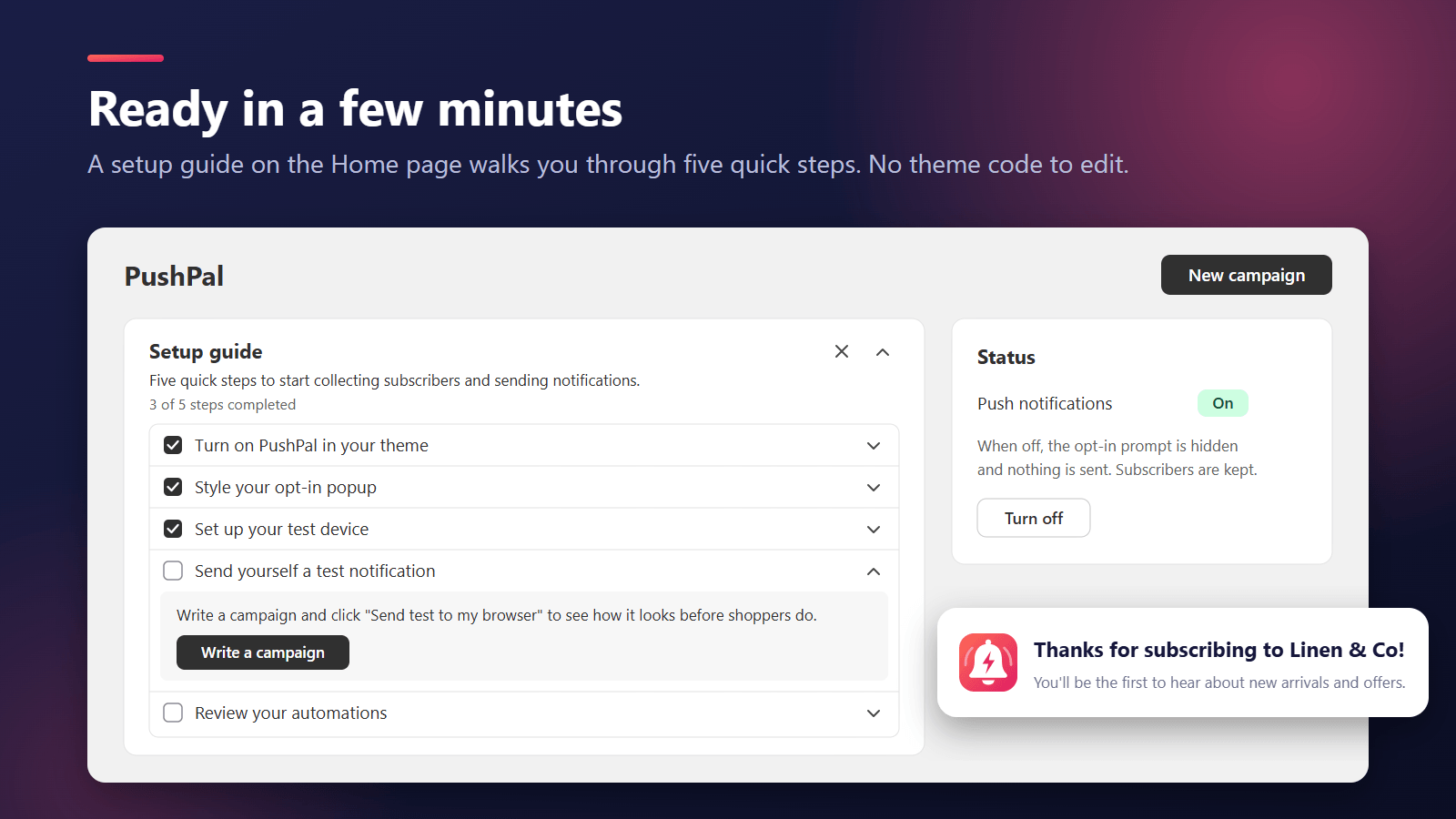
Open the PushPal listing on the Shopify App Store and click Install. Approve the permissions and start the free trial. PushPal opens inside your Shopify admin on its Home page, with a short setup guide that ticks each step as you finish it.
Step 2: Turn on the PushPal app embed
This is the step that puts the opt-in popup on your store. From the setup guide, open the theme editor (or go to Online Store › Themes › Customize › App embeds), switch on PushPal and click Save. No code is added to your theme files, and the storefront script loads after your page so it doesn’t slow it down.
Step 3: Make the opt-in popup your own
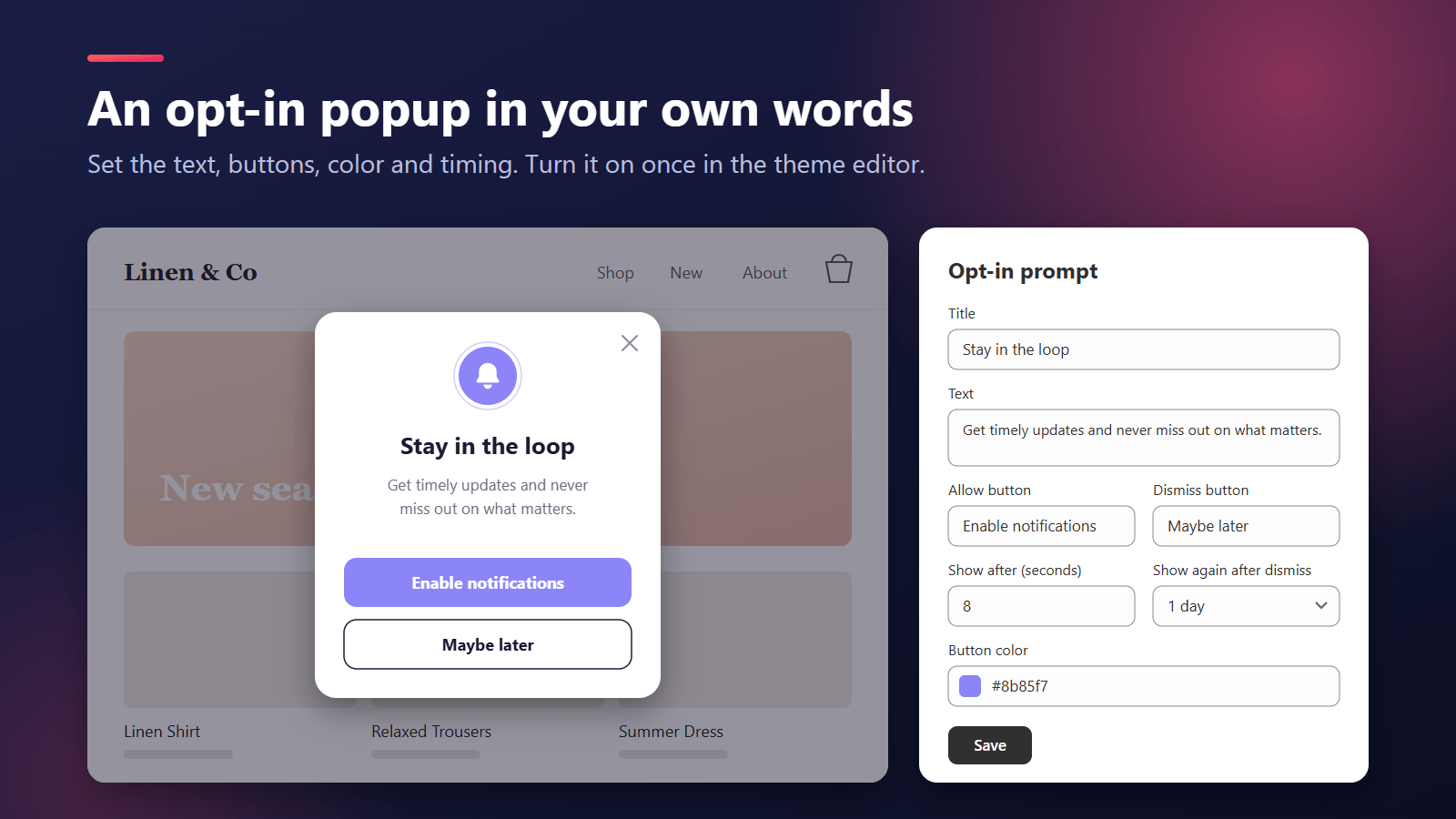
PushPal asks with its own small popup first, and only shows the browser’s permission prompt after the shopper says yes. That way a “not now” never blocks you for good. In the popup settings you can change:
- The title, the message and both button labels.
- The colour of the bell and the allow button, to match your brand.
- How many seconds a shopper spends on your store before the popup appears.
- How many days to wait before asking again after “Maybe later”.
Step 4: Link your test device
In Settings, link your own browser as the test device. “Send test to my browser” then sends only to you, so you can see exactly what shoppers will see before anything goes out. Tests never reach shoppers.
Step 5: Check your automations
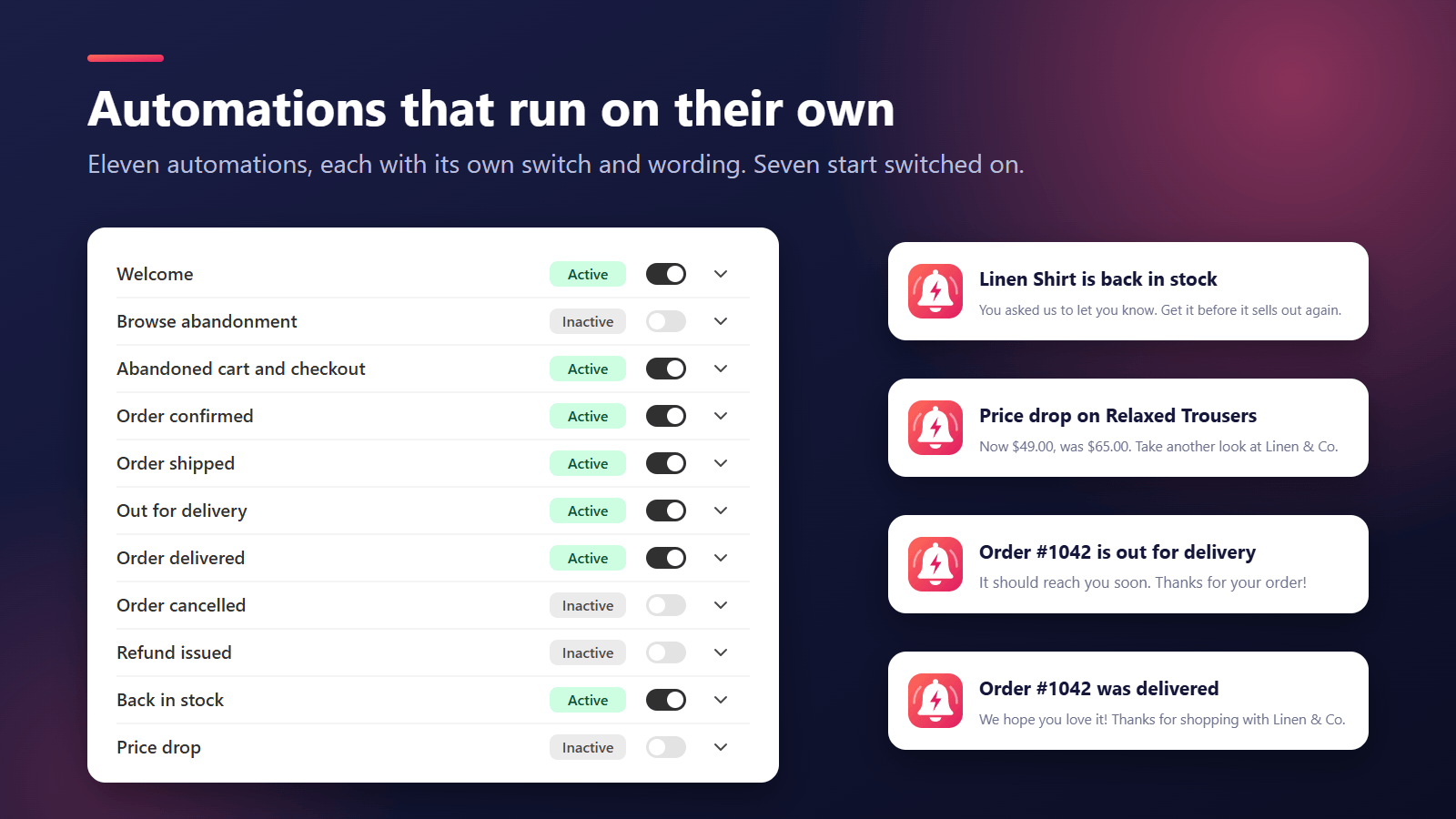
Open Automations. Each one has its own switch and its own message, which you can edit. Order updates, the welcome message, abandoned cart and checkout reminders and back in stock alerts start switched on. Browse reminders, price drop alerts and the cancelled and refund notices start off, so you choose whether you want them.
Abandoned cart and checkout reminders
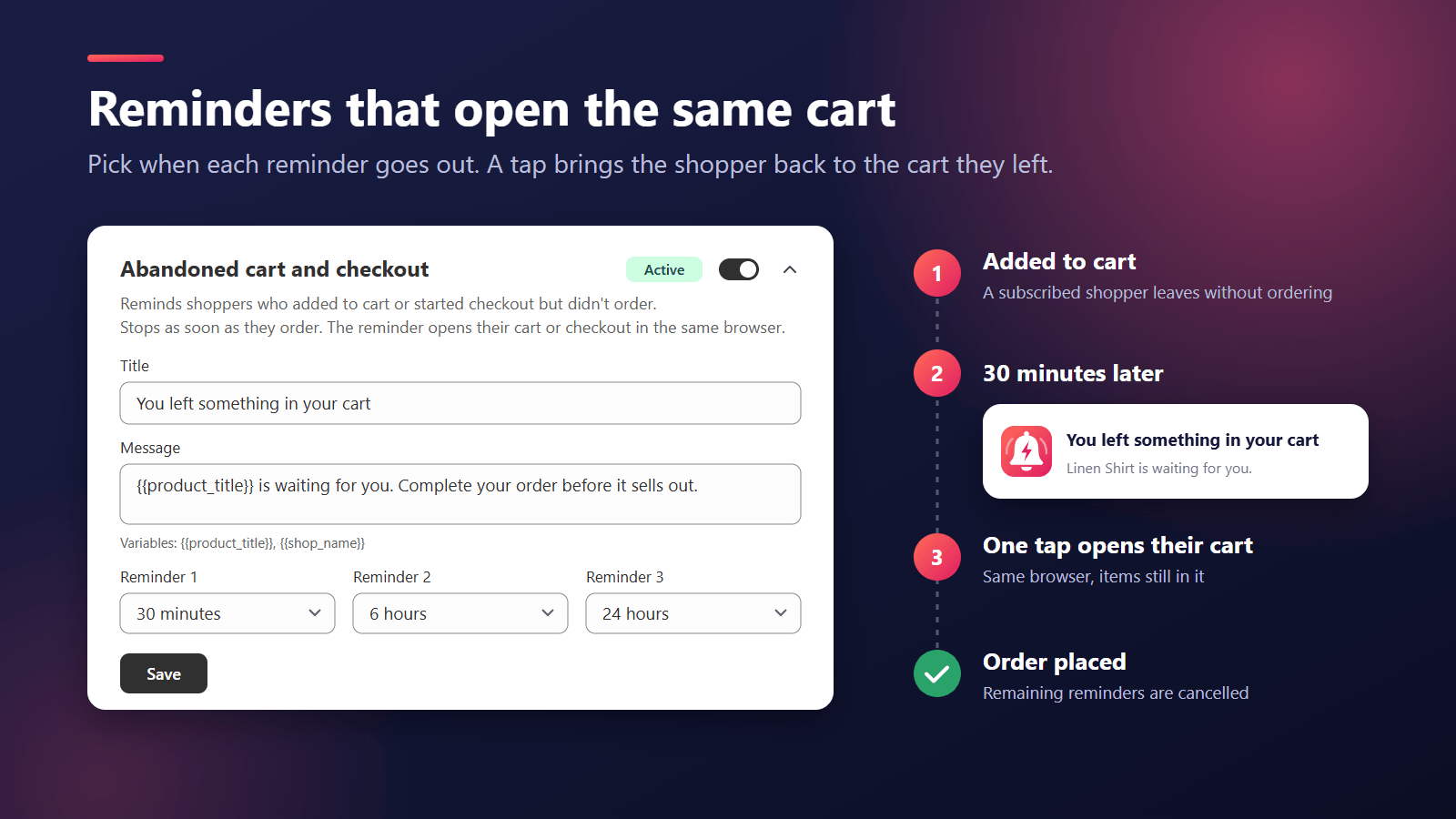
When a subscriber adds something to their cart and leaves, PushPal sends up to three reminders. By default they go out 30 minutes, 6 hours and 24 hours later, and you can change each delay. A click opens the cart in the same browser, so the items are still there. Placing an order cancels any reminders still waiting, so nobody is reminded about something they already bought.
The back in stock button
In the theme editor, open your product page template and add the Back in stock button app block. On a sold-out variant, shoppers see “Notify me”, and PushPal tells them when that variant is back. It works for every variant, so a shopper waiting for a medium in blue isn’t told about a large in red.
Step 6: Send your first campaign
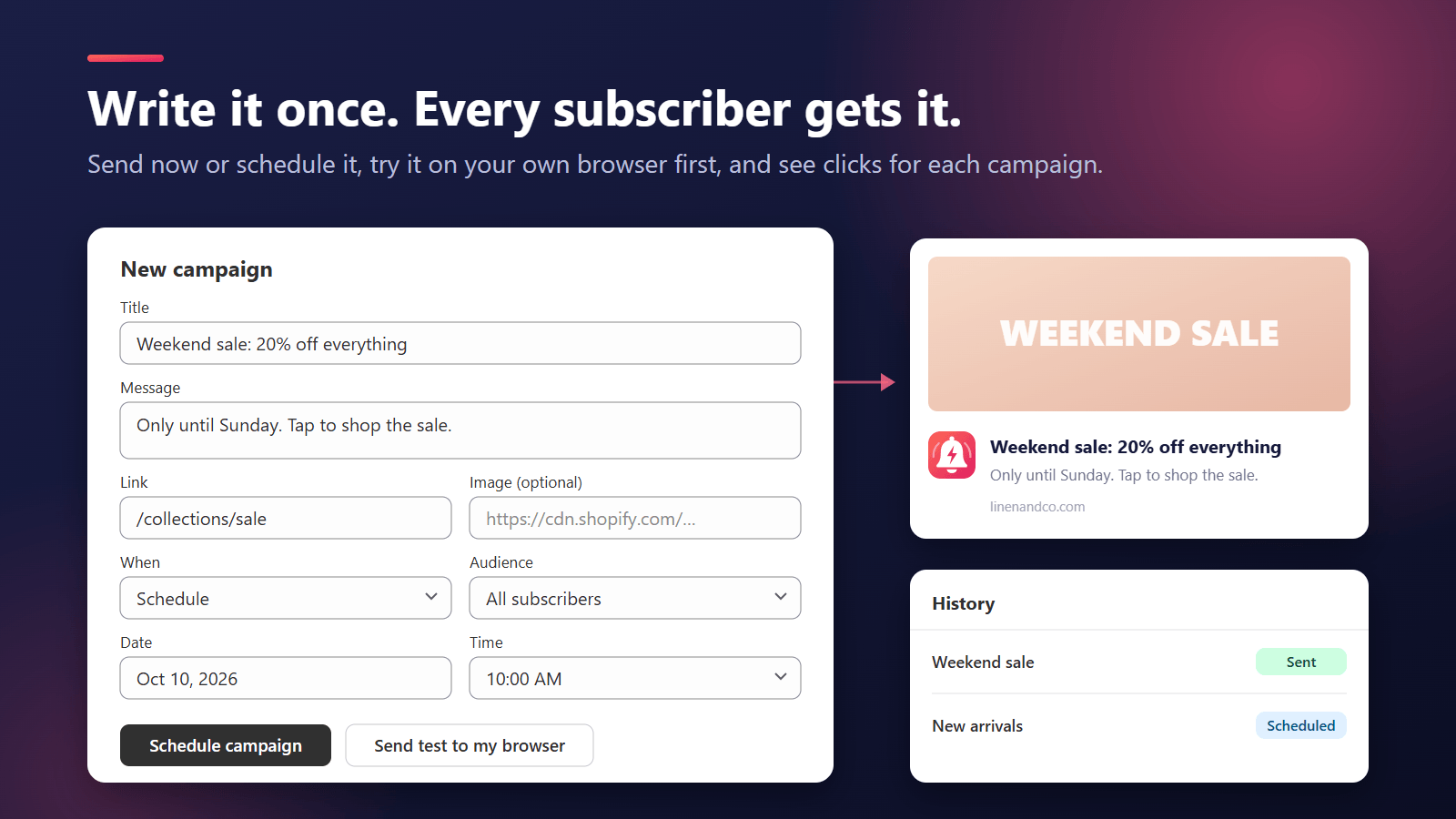
When you have a few subscribers, go to Campaigns and write a title, a short message and a link. Add an image if you like, send a test to your browser, then send it now or schedule it for later.
Use the features together
Each feature helps on its own. Together they cover a shopper from the first visit to the parcel at the door, and that is where push pays for itself:
- First visit: the popup turns a passing visitor into a subscriber, and the welcome message confirms it worked.
- Looking around: a browse reminder brings back the shopper who looked at a product but didn’t add it. If that product later gets cheaper, a price drop alert gives them a reason to buy now.
- Nearly buying: cart and checkout reminders recover the sale that a phone call or a closed tab interrupted.
- Sold out: “Notify me” keeps the shopper you would otherwise lose to another store, and the alert goes out the moment you restock.
- After the order: shipped, out for delivery and delivered updates mean fewer “where is my order?” emails, and they keep your store in front of the customer for their next purchase.
- Your campaigns: new arrivals and sales reach every subscriber at once.
Quiet hours hold reminders overnight in each shopper’s own time zone, and a daily limit caps how many reminders one shopper gets, so more automations doesn’t mean more annoyed shoppers. Order updates are never held back.
Step 7: See what push brings in
Home, Campaigns and Automations show subscribers, notifications sent, click rate, and the orders and revenue from shoppers who clicked a notification in the 7 days before buying. Look at which messages get clicked and do more of those.
What it costs, compared
Most Shopify push apps charge by how many notifications you send, and keep some automations for higher plans. PushPal has one plan with every feature and no limits on subscribers or notifications.
| App | Entry paid plan | Limit | Browse reminders |
|---|---|---|---|
| PushPal | $9.99/month | Unlimited subscribers and notifications | Included |
| Brevo PushOwl | $19/month (Plus) | 10,000 pushes a month | Power plan, $79/month |
| Firepush | $13/month (Basic) | 10,000 pushes a month | Check the listing |
Prices from each app’s Shopify App Store listing in October 2026. They change, so check the PushOwl and Firepush listings for current plans. Both also offer email or SMS, which PushPal doesn’t.
How to write notifications people click
- Be specific. “Your cart is waiting: the linen shirt in M” beats “Come back!”
- Keep it short. Phones cut long text, so put the important words first.
- Send less, not more. A few useful campaigns a week keep subscribers. Daily promotions make them turn notifications off.
- Link to the right page. Send people straight to the product or collection you mention, not your home page.
A note on iPhone and iPad
On iPhone and iPad, Apple only allows web push for sites that the shopper has added to their Home Screen (iOS 16.4 and later). PushPal doesn’t show the popup there yet, so no shopper sees a button that doesn’t work. Your subscribers will come from computers and Android phones, which is the same for every web push app on a normal Safari tab.
Privacy
Push is opt-in by design: nothing is sent unless the shopper accepts the browser prompt, and reminders only go to shoppers who allowed marketing in your store’s cookie banner. PushPal doesn’t collect shoppers’ names or email addresses. The PushPal privacy section lists what the app stores and for how long.
Get started
Install PushPal from the Shopify App Store and try every feature free for 30 days. If you get stuck, click “Chat with us” on PushPal’s Help page or email [email protected]. A person who builds PushPal will reply.
Questions
How do I enable push notifications on my Shopify store?
Can push notifications recover abandoned carts on Shopify?
Do I need to edit my Shopify theme code?
How much does PushPal cost?
Do push notifications work on iPhone?
Written by
Ubaid Hussain
Founder, KarachiSol
Ubaid founded KarachiSol and builds its apps. He has spent more than six years building web products, from Wix and Shopify apps to business dashboards.
More about Ubaid